Should you encounter
any problems during the installation process of Urgent Messaging, please
contact the NBC Helpdesk at 1-888-332-6221
 Registering for the NBC Urgent Messaging Application
Using your browser, please
visit the NBC Urgent Messaging site at: http://urgent.nbcuni.com
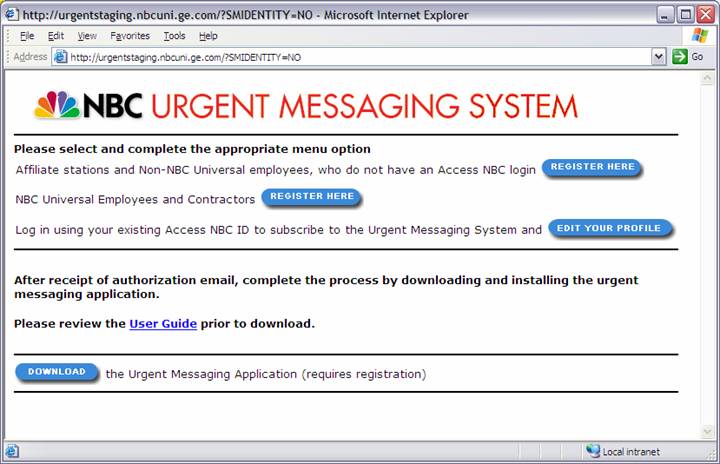
Use this page to REGISTER and subscribe to the NBC UM system.
If you already have an
Access NBC or SSO ID, please EDIT
YOUR PROFILE to subscribe to
the NBC UM system.
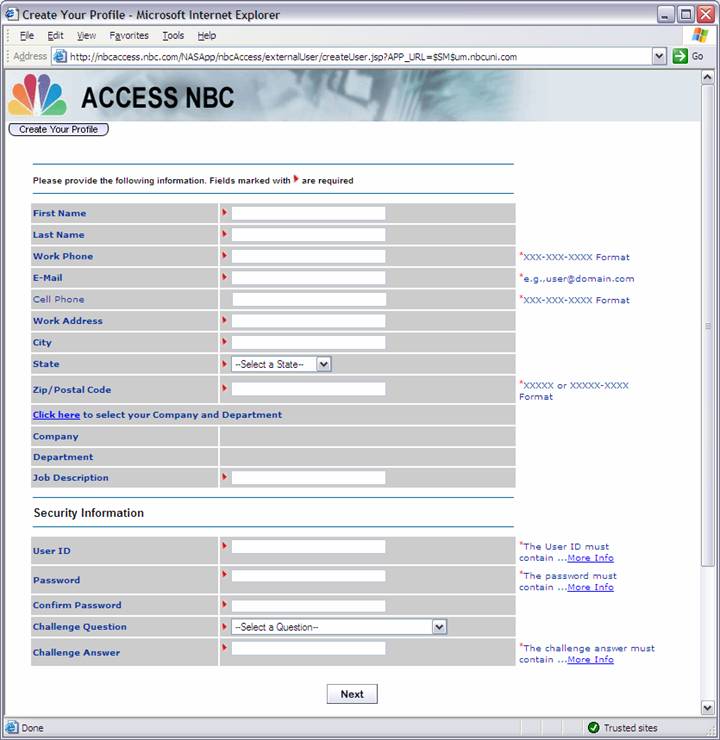
Affiliate stations and non-NBC Universal employees: When
registering for the first time, please complete the and submit following
information. Click “NEXT” to continue
ALL Users Registering for
Urgent Messaging:
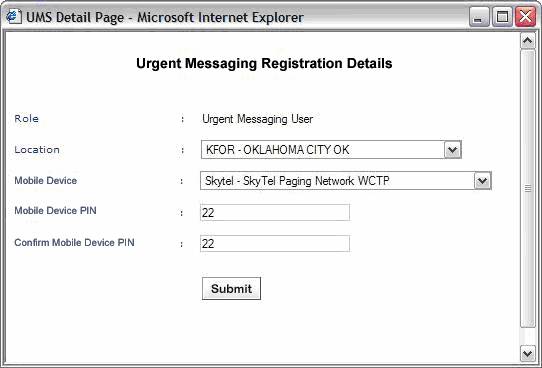
When registering online at http://urgent.nbcuni.com you will be
presented with the following Urgent Messaging registration page.
Please:
1. Select Your Location from the Location list
2. Select Your Handheld Device from the Mobile
Device list (currently Blackberry and Skytel)
3. Enter the PIN for your mobile device
4. CONFIRM the PIN for your
mobile device
AFTER REGISRTATION
PLEASE CHOOSE ONE OF THE FOLLOWING:
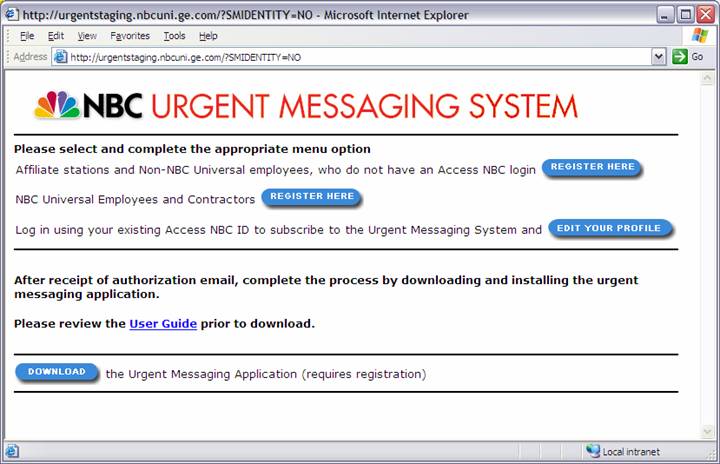
1. Affiliate stations and non-NBC Universal employees: after a receipt of an authorization email, please return to this same
page http://urgent.nbcuni.com and click
DOWNLOAD
OR
2. NBC Employees and contractors: Please contact the NBC Helpdesk at 1-888-332-6221
to obtain the Urgent Messaging
System for your NBC computer.
Downloading and Installing the Urgent Messaging Application
* This section for Affiliate Stations and Non-NBC employees only *
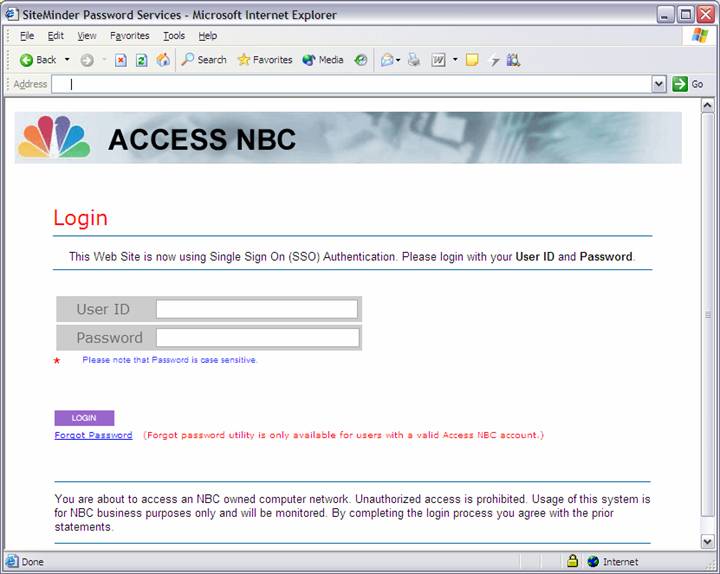
Please log in with your
Access NBC ID or SSO ID and Password, after clicking DOWNLOAD on the http://urgent.nbcuni.com
website:
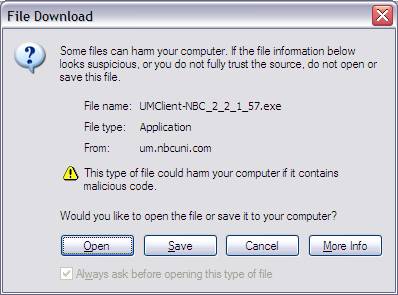
When presented with the
following prompt, please click “OPEN”
to continue.
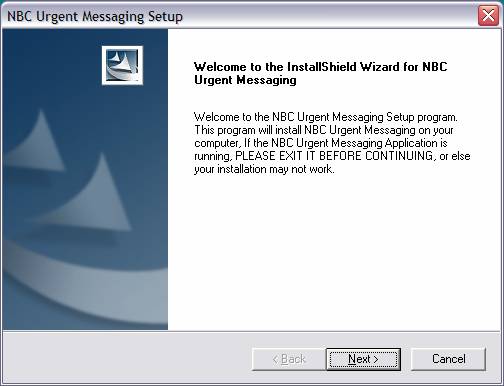
The NBC Urgent Messaging
Application installation process will start.
You will see the following Message and prompt. Please click “NEXT” to continue:
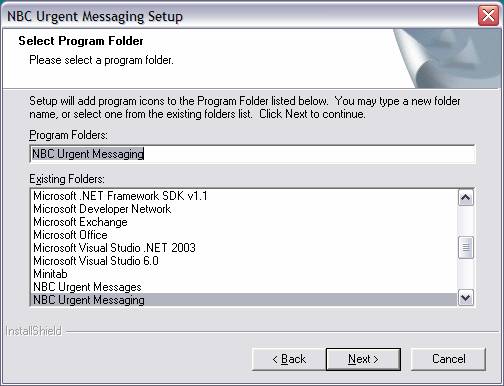
Please click “NEXT” to continue at the following Message:
Please click “NEXT” to continue at the following Message:
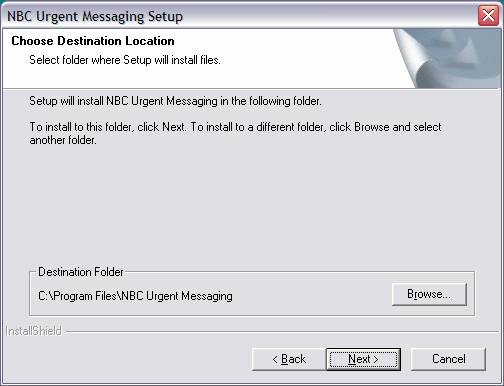
Please click “FINISH” to continue at the following Message:
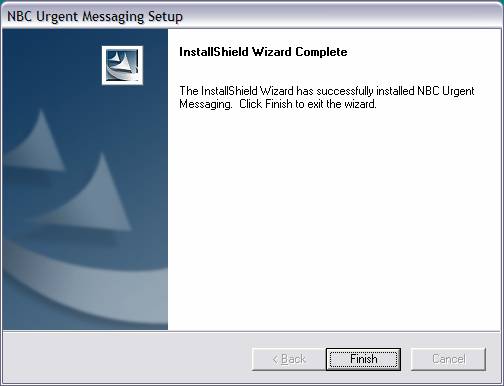
* INSTALLATION COMPLETE *
Please follow the next section titled
“Getting Started with the NBC Urgent
Messaging Application”
Should you encounter
any problems during the installation process of Urgent Messaging, please
contact the NBC Helpdesk at 1-888-332-6221
Getting Started with the NBC Urgent Messaging Application

After the application is
installed, please double-click the “NBC
Urgent Messaging” ICON
on your computer’s DESKTOP,
or in the START menu listed as ”NBC Urgent Messaging”
To run the NBC UM
application for the first time, double-click the NBC Urgent Messaging ICON on
your desktop.
The
first time you run the UM client, it will prompt you for the configuration
information.
It
will start by prompting you for your Preferred Name. This field is normally
your full name.
CLICK
“NEXT” TO CONTINUE
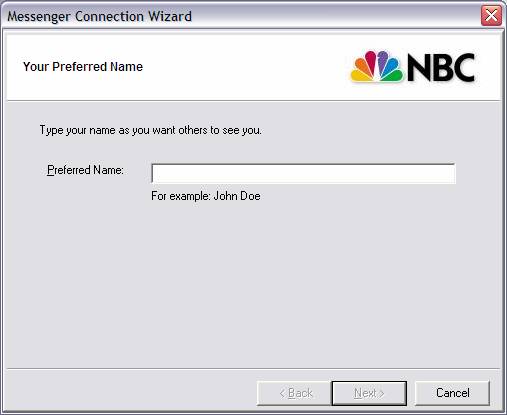
Enter
your Access NBC or SSO ID and Password
Select
“Remember Profile”
CLICK
“NEXT” TO CONTINUE
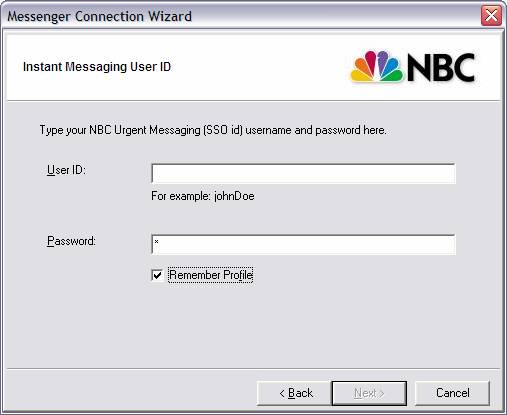
CLICK
“DONE” TO CONTINUE
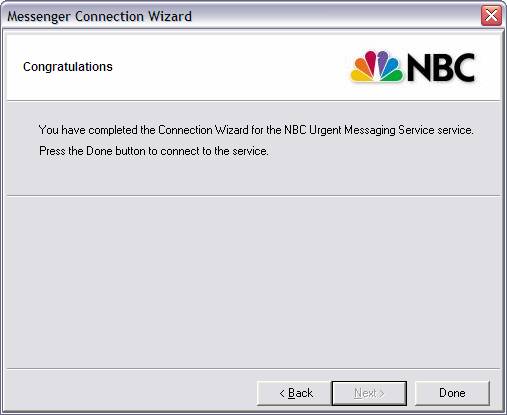

The NBC Urgent Message System is now
running on your computer
You
can confirm this by looking at the task bar – to the right, in the System Tray
area you will notice the Urgent Messaging Icon:

Double-clicking
this Icon will bring up the Urgent Messaging System and display existing
messages.
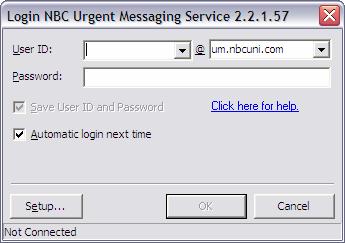
If you did not check the
“Remember Profile” checkbox, you will be presented with the following login
screen when launching the application.
Type in your Access NBC Username or SSO ID and password; select “Save User ID and Password”
Click “OK” to log in.
Should you encounter any problems
during the installation process of Urgent Messaging, please contact the NBC
Helpdesk at 1-888-332-6221
Configuring the NBC Urgent Messaging Application
Changing your preferences
You can change the proxy and
server settings by right clicking on the UM Client icon and then selecting
options. If you are viewing messages, the Tools menu will also provide a menu
item Options
The UM application will
attempt to automatically configure
itself for your computer network environment based on the settings in your
Internet Explorer.
If this is not successful,
the application will require you to manually specify proxy server information
You may need to consult your local IT Administrator to obtain the correct proxy
settings for your network.
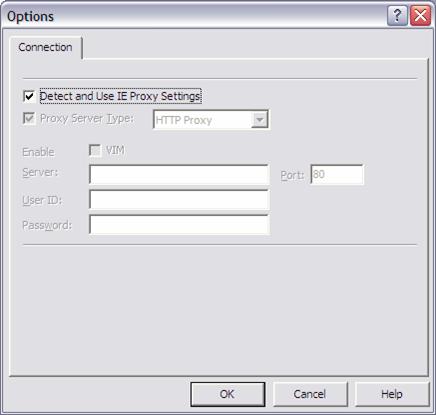
To manually set the proxy:
- Un-select “Detect and Use IE Proxy Settings”
- Check
“Proxy Server Type” and choose “HTTP PROXY” in the drop-down list
- Check “
Enable VIM”
- Type in the DNS name or Address of your Proxy
server
- Specify the PORT – this is typically set to “80”
Receiving and Acknowledging Messages
When a message is received,
the NBC UM Application will pop up and display the latest message. Any
previously received messaged will also be available.
To acknowledge that you have
received the message, click on the Acknowledge button. Each message has to be acknowledged
separately, within 5 minutes, where after the Acknowledge button will be
‘grayed out’.
You will need to acknowledge
all unacknowledged messages before you will be able to close the window.
Unacknowledged messages are marked with ‘***’ in the list of
available messages
Viewing Previous Messages
Past messages can be viewed
by:
1. Double-clicking on the NBC UM icon in the system
tray. This will pop up the message history.
2. Select the date that you want to view and the message
on that date.
Printing Messages
Click the “Print” button or
use the Tools Menu bar to print the current message.
Closing the NBC UM Application
To close the UM Application,
right click on the system tray icon and select Exit. You will no longer receive
messages.
To re-launch the UM
Application, double-click the “NBC Urgent Messaging” icon on the desktop
Connection lost - System Tray flashing
If the system tray icon is
flashing, you have lost connection to the server. Please contact your help
desk.